Video Preview


About this listing
Voice Access is listed with version, update, developer, screenshots, permissions, source, and compatibility details from the available app metadata.
Before you install
- Android requirement is not listed in the current data.
- Package size is not listed in the current data.
- The source link points to a Google Play listing.
Listing evidence
Voice Access includes version Varies with device, last update Jan 8, 2026, 7 screenshots, privacy policy link in the current metadata.
The current metadata notes that permission list is not available.
Voice Access app information and review notes
Voice Access by Google LLC is listed in Tools. This page organizes the available metadata into a practical review format, including version Varies with device, Android requirement not listed, update date Jan 8, 2026, rating 3.7 out of 5, and install signal 1,000,000,000+.
Browse Android utility apps by comparing the task they solve, device permissions, offline behavior, update history, and whether the tool is simple enough for repeated use. For Voice Access, use the details below as a checklist before you decide whether the app fits your device, privacy expectations, and use case.
Use case fit
Voice Access is summarized as: "Provides accessibility by voice for hands-free mobile computing." Compare that promise with the screenshots, category, update notes, and related apps before installing.
Version and compatibility
The listing shows version Varies with device, Android requirement not listed, package size not listed, and last update Jan 8, 2026. These details matter because older devices, large packages, and stale updates can change the install experience.
Privacy and permissions
Voice Access does not include a permission list in the current metadata, so review the source listing and Android install prompt carefully.
Review checklist
- Confirm the developer name and source listing before installing.
- Review version, Android requirement, package size, and update date.
- Compare requested permission access with the feature you actually need.
- Read recent change notes and ratings as signals, not as guarantees of safety.
App description
Voice Access provides many voice commands for:
- Basic navigation (e.g. "go back", "go home", "open Gmail")
- Controlling the current screen (e.g. "tap next", "scroll down")
- Text editing and dictation (e.g. "type hello", "replace coffee with tea")
You can also say "Help" any time to see a short list of commands.
Voice Access includes a tutorial which introduces the most common voice commands (starting Voice Access, tapping, scrolling, basic text editing, and getting help).
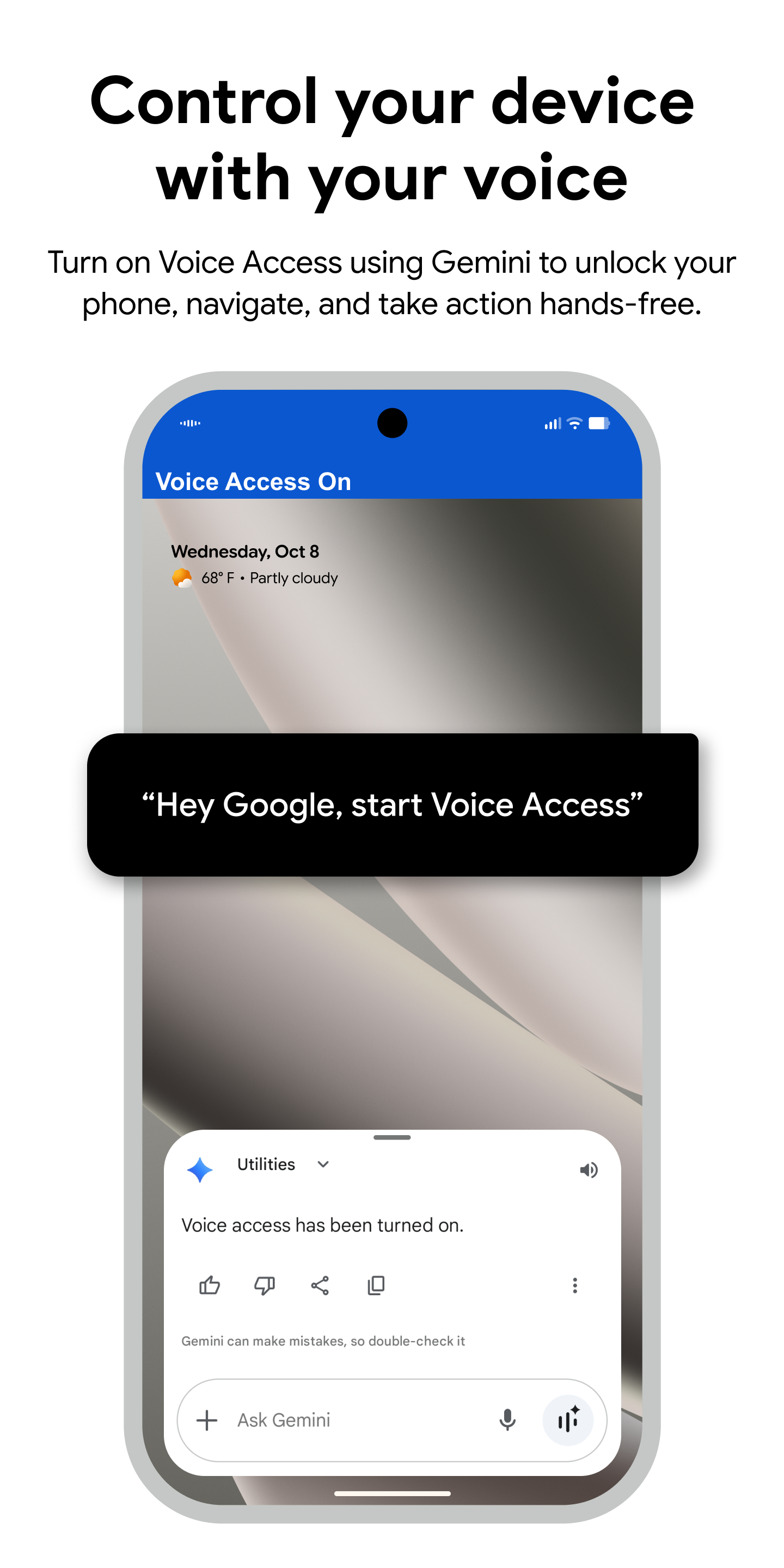
You can use the Google Assistant to start Voice Access by saying "Hey Google, Voice Access". To do this, you’ll need to enable "Hey Google" detection. You can also tap either the Voice Access notification or a blue Voice Access button and start talking.
To pause Voice Access temporarily, just say "stop listening". To disable Voice Access completely, go to Settings > Accessibility > Voice Access and turn off the switch.
For additional support, see Voice Access help.
This app uses the AccessibilityService API to help users with motor impairments. It uses the API to collect information about the controls on the screen and activate them based on the user’s spoken instructions.
Requirements (Latest version)
• Requires Android 5.0 or higher